How to Install 9AM Report (QBCore, ESX)
How to install and roll out a FiveM report script with screen recording and pre-record support, giving staff a faster, evidence-based workflow on QBCore and ESX servers.
Staff Reports Are Your Server's Front Line
Every roleplay server deals with the same problem. A player types "he VDM'd me" into a report, a staff member teleports over, and the moment is already gone. Now it's one player's word against another's, and your staff member gets to play judge with no evidence.
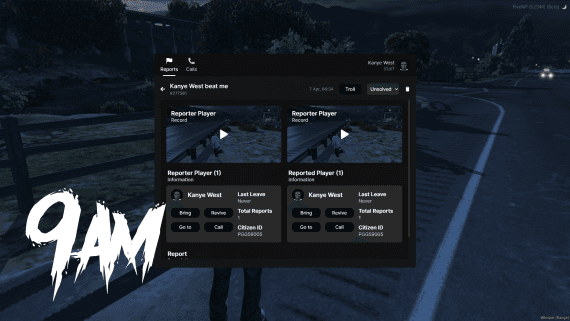
The 9AM Report script fixes this by attaching evidence to the report itself. It records the screen, and the pre-record system captures what happened before the player even opened the report. Staff watch the footage and make a call. No guessing, no twenty-minute arguments.
What Makes This Report System Different
The headline feature is screen recording. Reports can include footage of the incident, so staff act on what actually happened instead of what two angry players claim happened. Disputes that used to eat twenty minutes get resolved in two.
The pre-record system covers the other common case. The moments before a player opens a report are usually the ones that matter: the ram, the RDM, the exploit. Pre-recording means that context isn't lost just because nobody had a clip ready.
Performance was a real design goal too. Support tooling should be invisible until someone needs it, so the script stays light and out of the way of your gameplay resources.
And the install really is drag and drop. No external services to set up, no unusual dependencies.
Requirements and Compatibility
The script supports the two most common roleplay frameworks:
- QBCore (qb-core)
- ESX (es_extended)
If you run a standard QBCore or ESX stack, you're ready to install.
Installation
Step 1: Download and Place the Resource
Grab the script from your Cfx.re Portal after purchase and extract it into your server's resources/ folder.
Step 2: Add It to server.cfg
Your framework needs to start first:
ensure qb-core   # or es_extended
ensure sh-support
Step 3: Restart and Test
Restart the server and file a test report in-game. Have a staff member claim it, review the recording, and close it. If that round trip works, you're done. That's the whole install.
Tip: Walk your staff team through the claim and review flow once before going live. The speed advantage only shows up when staff actually watch the footage instead of teleporting in first.
Getting Your Staff Team to Use It Well
A report script is only as good as the process around it. A few things that work well on servers running this system:
- One report, one owner. The claim system exists so two staff members don't burn time on the same ticket.
- Watch the recording before engaging. Most reports can be resolved without interrupting anyone mid-scene.
- Keep an eye on repeat junk reporters. When a junk report costs staff seconds instead of minutes, the patterns become obvious fast.
Escrow or Open Source?
The escrow edition is the standard pick: install it, configure it, run it. The open source edition includes the full source, which makes sense if you want to wire the report flow deeper into your own staff tooling or change the UI.
Get Started
Players remember how a server handles problems. Give your staff evidence instead of arguments, and support stops being your weak point.
FiveM Report Script
Staff reports with screen recording and pre-record. Faster resolutions and fewer arguments, on QBCore and ESX.
More details in the report documentation.